
Spectro Team · April 30, 2026 · 4 min read
Spectro for VirtualDJ: How to Check Audio Quality Before Loading
VirtualDJ doesn't verify whether your WAV files are genuinely lossless. Here's how to check your library before your next set and avoid fake lossless files on any system.
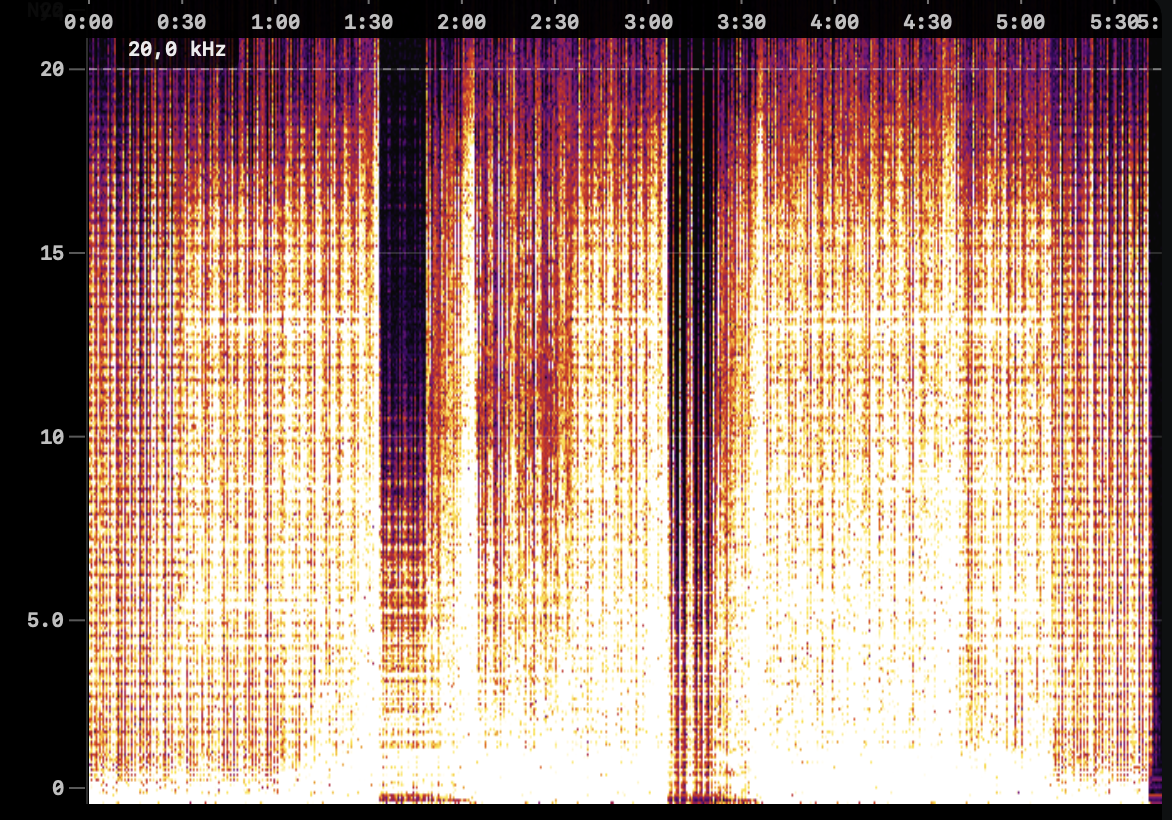
Quick Answer: VirtualDJ reads file format declarations and trusts them. It cannot detect fake lossless audio. To verify your library before loading tracks, scan your downloads with Spectro before adding them to VirtualDJ. The scan takes minutes, works on any folder, and returns a clear LOSSLESS, FAKE, or MEDIUM verdict per file.
VirtualDJ is one of the most widely used DJ software platforms globally, with a large user base across mobile DJs, event DJs, and club performers. It handles everything from library management and BPM analysis to live effects and video mixing. What it does not handle. Like any DJ software. Is verifying whether the audio inside a WAV or AIFF file is actually lossless.
This is not a VirtualDJ-specific limitation. No DJ software checks audio provenance. The responsibility for audio quality verification sits with the DJ, before files enter the active library.
Why can't VirtualDJ detect fake lossless files?
VirtualDJ, like all DJ platforms, reads file headers to determine format. A WAV header means WAV. An AIFF header means AIFF. The software confirms the format is valid and loads the file. Detecting whether the audio content was originally lossy requires spectral frequency analysis. A separate process that DJ software does not perform.
The practical consequence: a fake WAV (an MP3 re-encoded as WAV) loads into VirtualDJ exactly like a genuine WAV. BPM analysis runs. Key detection runs. The waveform displays normally. Nothing in the VirtualDJ interface indicates a quality problem.
Who is most affected by fake lossless files in VirtualDJ?
VirtualDJ's user base spans a wide range of performance contexts. The impact of fake lossless files varies:
Mobile and event DJs playing on typical PA systems (QSC, JBL, Yamaha) will often not notice the difference between a fake WAV and a genuine one. The systems don't resolve the frequency range where the degradation is most apparent.
Club DJs playing on high-end installed sound systems will notice. A Funktion-One, d&b Audiotechnik, or similar professional system reveals encoding artifacts and missing high-frequency content that consumer-grade equipment masks.
Home setup / streaming DJs using VirtualDJ for production, podcasts, or high-fidelity listening will notice on quality headphones or studio monitors.
The higher the quality of your output system, the more it matters.
How do you add a quality check to your VirtualDJ workflow?
Step 1. Keep new downloads in a staging folder. Before adding any new files to your VirtualDJ library, hold them in a separate folder.
Step 2. Drag the staging folder into Spectro. Spectro scans each file and returns a verdict: LOSSLESS, FAKE, or MEDIUM. On Apple Silicon, a batch of 100 files processes in approximately 4–5 minutes.
Step 3. Handle FAKE results. Files marked FAKE should be replaced with genuine lossless versions from the original store. If no replacement is available, a high-quality MP3 is preferable to a fake WAV.
Step 4. Add verified files to VirtualDJ. Import clean files into your VirtualDJ database. Run analysis and set cue points knowing the source material is what it claims to be.
How do you audit files already in VirtualDJ?
VirtualDJ stores its music in folders on your hard drive. Typically your main music folder or an external drive. Locate the root folder in Finder and drag it into Spectro for a full library audit.
For a library of 3,000–5,000 tracks, the scan takes 20–35 minutes on Apple Silicon. Run it during downtime. Filter by FAKE when complete and address the results over time. Even catching 50 fake files in a library of 5,000 is worth it. Those are 50 tracks you now know not to play on a system that would reveal the problem.
What does MEDIUM mean for VirtualDJ files?
MEDIUM means the spectral cutoff falls in the ambiguous zone. Around 19–20 kHz. Where Spectro cannot definitively distinguish a high-quality lossy encode from a genuine lossless file. For files from established stores, MEDIUM is most likely clean. For files from record pools or peer-to-peer sources, MEDIUM warrants consideration.
For the complete pre-gig quality checklist that applies regardless of which software you use, see How to Check Audio Quality Before a Gig. For the full detection method explanation, see How to Detect Fake Lossless Audio Files on Mac.
Related posts
Try Spectro free
100 tracks free. No account needed. Personal $24.99 for 1 Mac; Duo $39 for up to 2 Macs.
Download the free 100-track trial