 Spectro
Spectro Team · April 18, 2026 · 7 min read
How to Detect Fake Lossless Audio Files on Mac
A fake lossless file looks like WAV or FLAC but sounds like MP3. Here's how to detect them using spectrograms, and scan your entire library automatically.
Quick Answer: On Mac, detect fake lossless across WAV, AIFF, FLAC, and other supported formats by batch-scanning a folder and reading automatic LOSSLESS/FAKE/MEDIUM verdicts. That workflow lives on the lossless audio checker for Mac. Open Spek or another spectrogram viewer only as secondary verification for MEDIUM tracks. Common cutoffs: 16 kHz (128 kbps MP3), 19 kHz (192 kbps), 20 kHz (320 kbps). For FLAC authenticity only, see how to verify FLAC files.
A fake lossless file is exactly what it sounds like: an audio file with a lossless container (WAV, AIFF, FLAC) that actually contains audio compressed from a lossy source (MP3, AAC). The file size looks right. The bit depth looks right. But the audio has already been degraded, and no amount of re-encoding can recover what was lost.
For DJs, this is a real problem. If you're not sure what fake lossless means or how it ends up in DJ libraries, see What Is Fake Lossless Audio? first. Stores occasionally mislabel files. Automated conversion tools silently transcode. Files get passed through workflows that strip or change formats. The result ends up in your library looking like a 24-bit WAV and playing through a club system at 44.1kHz - but it was MP3 the whole time.
The practical order for library-scale detection: automatic batch verdict first, then manual spectrogram reading only where the result is unclear.
How does Spectro detect fake lossless automatically?
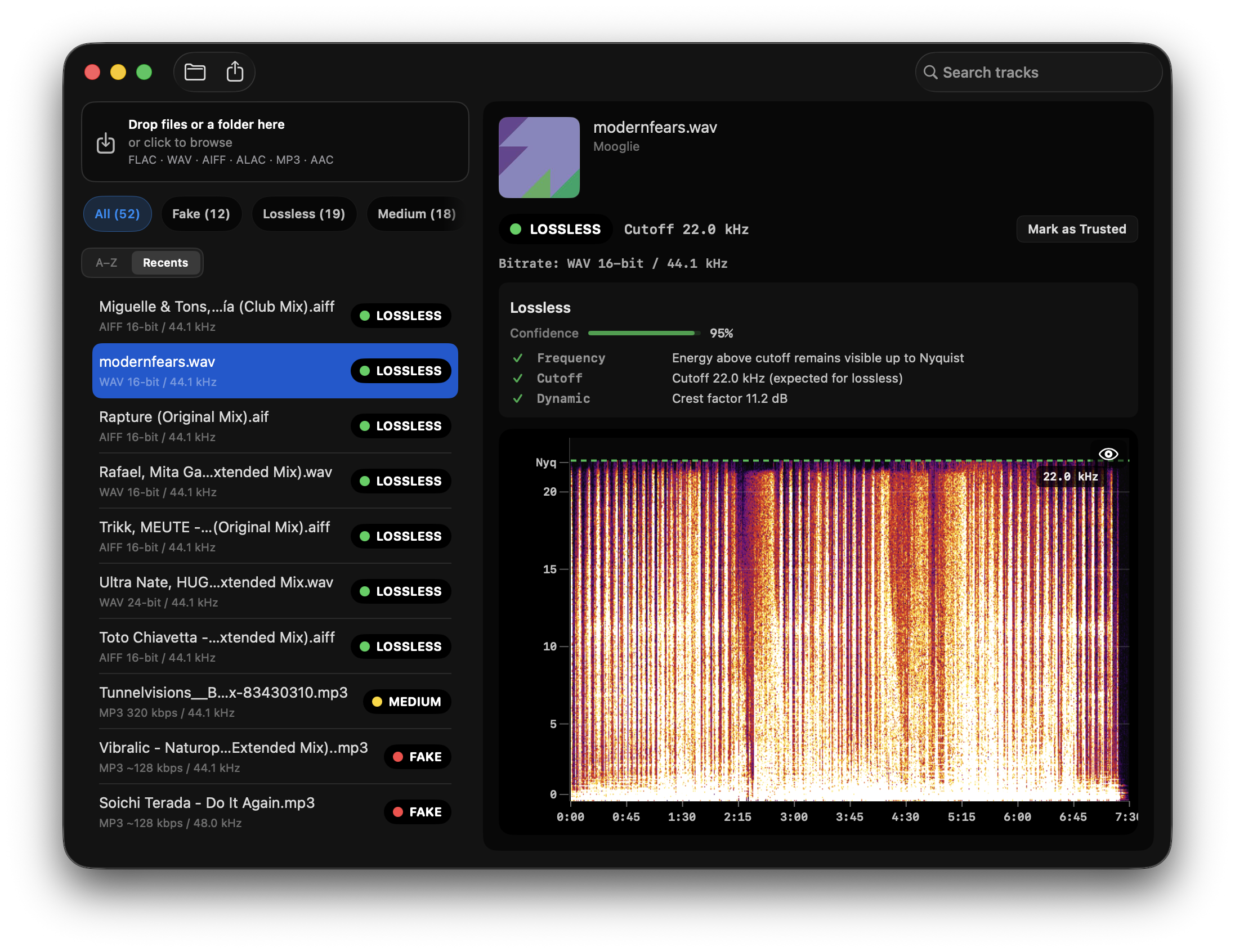
For a mixed Mac library, start with the lossless audio checker. Drop a folder of WAV, AIFF, FLAC, or other supported files, batch scan offline, and Spectro returns an automatic LOSSLESS/FAKE/MEDIUM verdict per track from FFT cutoff analysis:
- LOSSLESS - frequency content extends naturally to the Nyquist limit
- FAKE - hard cutoff detected, consistent with lossy encoding
- MEDIUM - high-bitrate lossy or ambiguous cases (e.g., 320kbps MP3, some masterings)
Filter by FAKE, apply Finder tags, and replace problem tracks before USB export. Paid plans start at $24.99: Personal for 1 Mac or Duo for up to 2 Macs at $39. The trial covers 100 tracks. Use Spek or Sonic Visualiser afterward if you want to inspect a MEDIUM spectrogram by eye. That is secondary verification, not the primary method for hundreds of files.
If you already have years of crates and promos piled up, walk through how to systematically audit your existing collection. For FLAC purchase folders specifically, use verify FLAC authenticity and the fake FLAC detector.
How does fake lossless detection work?
Every lossy compression format (MP3, AAC, OGG) removes high-frequency content to reduce file size. A 128kbps MP3 typically cuts off around 16 kHz. A 320kbps MP3 cuts off around 19-20 kHz. Genuine lossless audio from a CD source extends to 22 kHz (the Nyquist limit for 44.1kHz sample rate).
When someone converts a 128kbps MP3 to WAV or FLAC, the container changes but the audio doesn't. The high frequencies that were removed during MP3 encoding are gone permanently. The resulting file will show a hard cutoff in its spectrogram - a flat, dark region above the cutoff frequency - instead of the gradual rolloff that characterizes real lossless audio.
That cutoff is the fingerprint of a fake.
How do you read a spectrogram?
A spectrogram displays frequency (vertical axis) over time (horizontal axis). Energy is shown as color intensity - bright orange/yellow means strong signal, dark purple/black means silence.
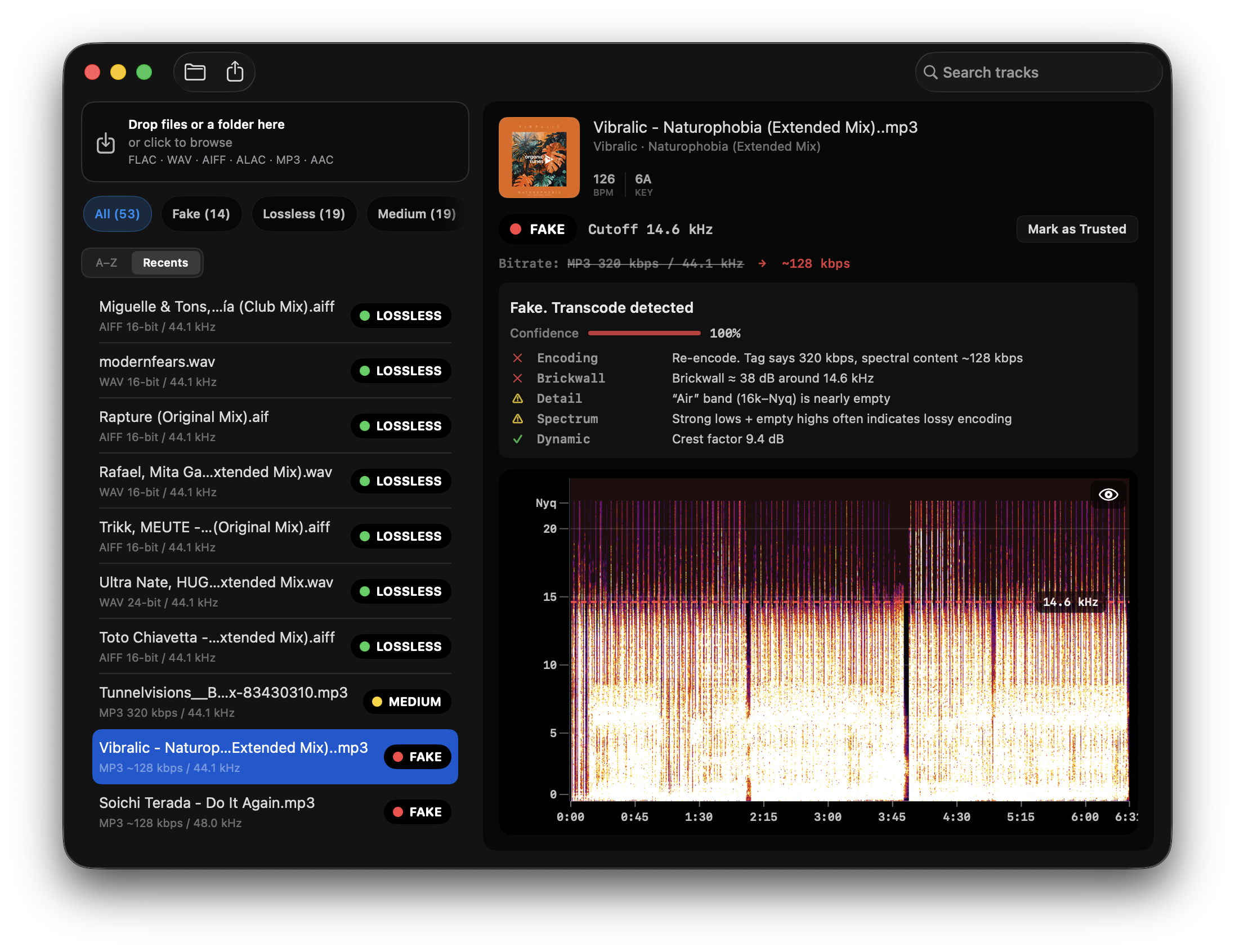
This is what a fake lossless file looks like:
Notice the hard horizontal line around 14.6 kHz. Everything above it is dark. This file was tagged 320 kbps, but Spectro reads the spectrum as about 128 kbps. The WAV or FLAC label would not change that fingerprint.
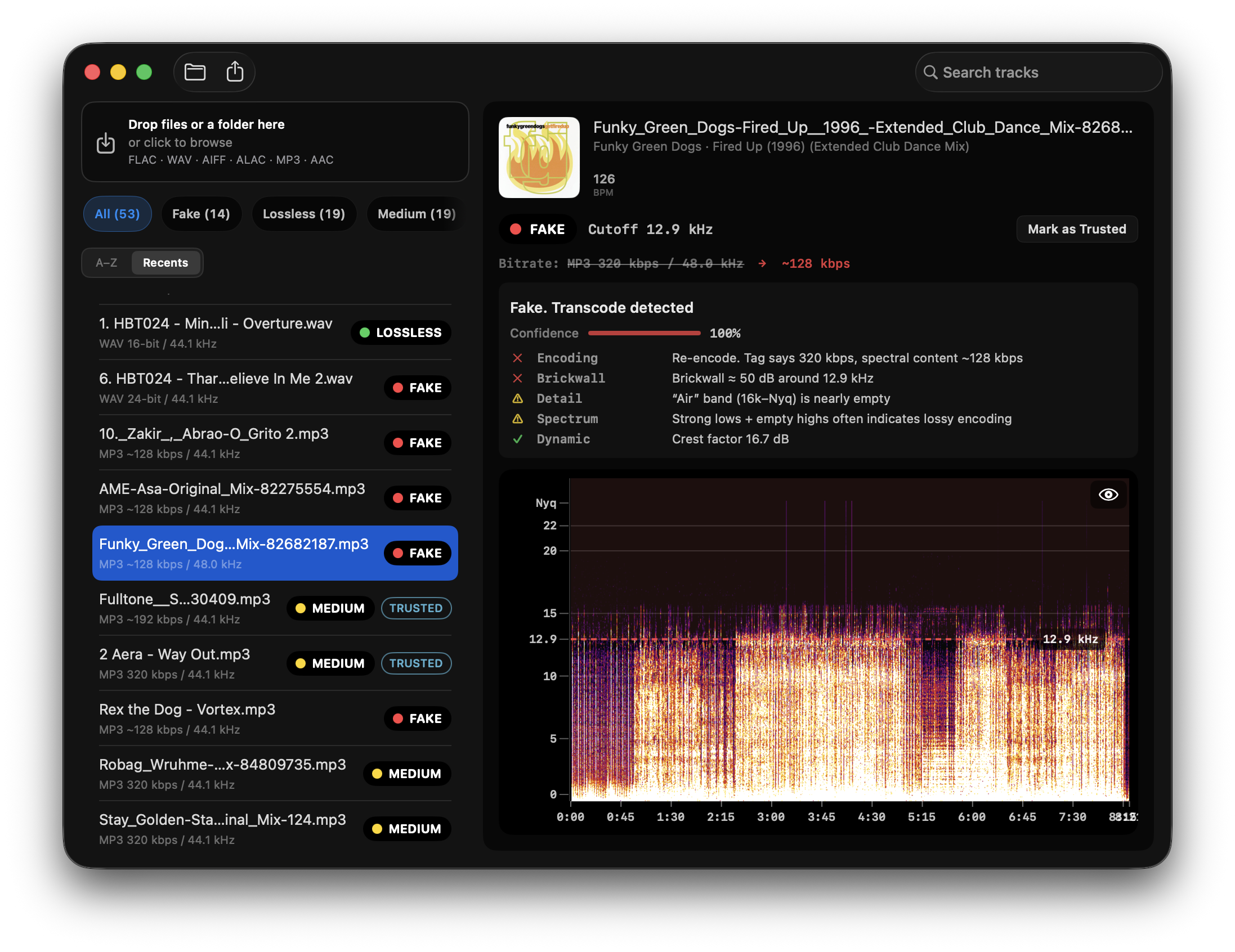
Here's another transcode with a lower cutoff at 12.9 kHz:
This is what a real lossless file looks like:
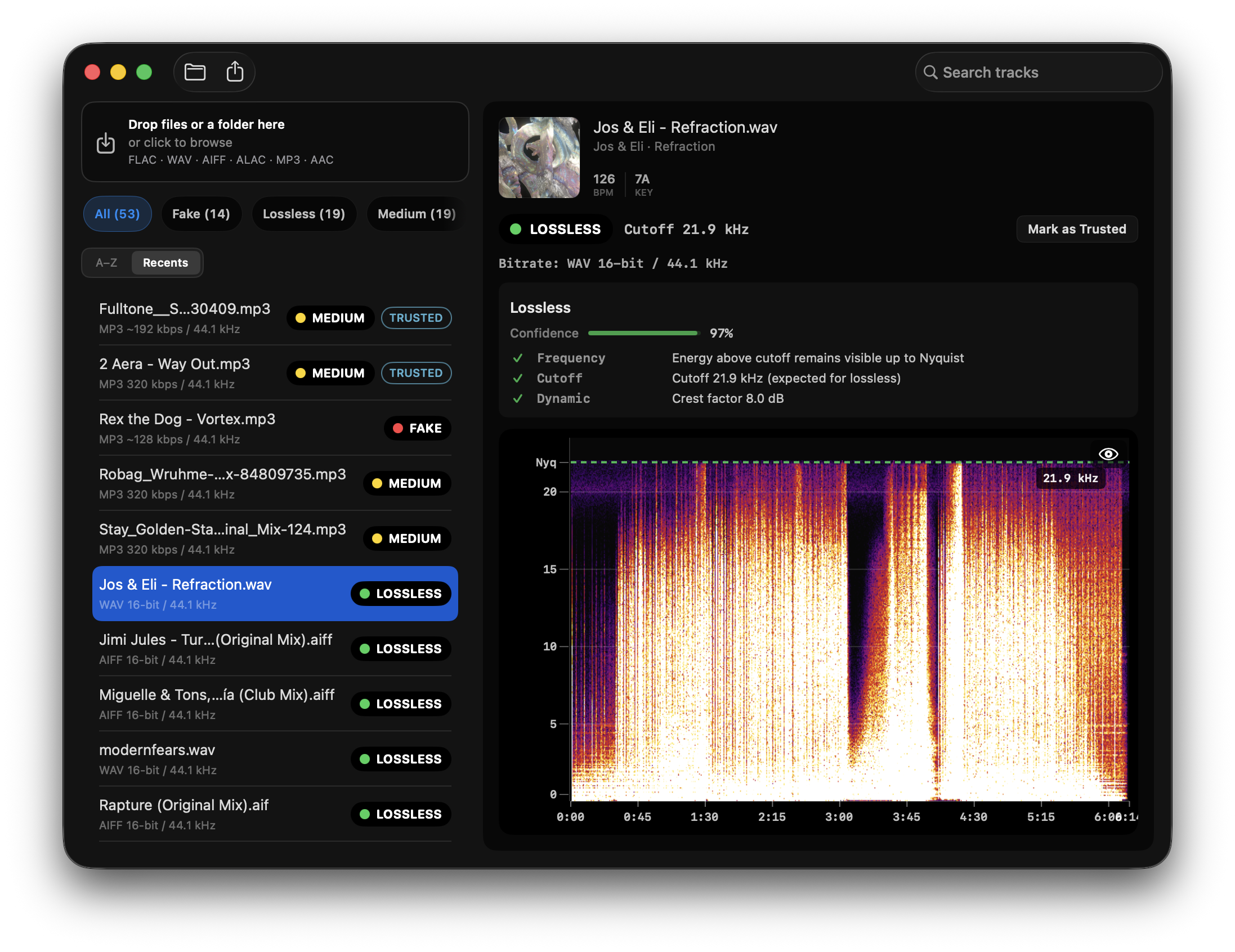
The frequency content extends toward 20 kHz with a natural, gradual rolloff - not a hard cutoff. Some energy variation above 15 kHz is normal. What you're looking for is the absence of a hard horizontal line.
How do you check files manually for fake lossless?
Using Sonic Visualiser (free)
- Download and open Sonic Visualiser
- Open your audio file (File -> Open)
- Add a spectrogram layer: Layer -> Add Spectrogram
- Set the frequency scale to linear (right-click the Y axis -> Linear Scale)
- Zoom in vertically to focus on the 15-22 kHz range
- Look for a hard horizontal cutoff
This works for individual files. For a library of hundreds of tracks, it's not practical - each file takes 1-2 minutes of manual inspection.
What should you look for in a spectrogram?
| Cutoff frequency | Likely source |
|---|---|
| ~16 kHz | MP3 128kbps |
| ~18-19 kHz | MP3 192-256kbps |
| ~19-20 kHz | MP3 320kbps |
| Natural rolloff at 20-22 kHz | Genuine lossless |
| Full content to Nyquist (22 kHz) | Genuine lossless |
Note: Some recordings have natural high-frequency rolloff due to mastering or the original recording equipment. A cutoff doesn't always mean fake - it requires judgment. Files from vinyl or older recording equipment may have reduced high-frequency content even in genuine lossless form.
When should you use Spek or a spectrogram as secondary verification?
Manual tools still matter for edge cases. After Spectro returns MEDIUM. Or if you want to double-check a FAKE you disagree with. Open Spek or Sonic Visualiser and look for the hard horizontal cutoff above 15 kHz. That secondary step is useful; it is not the best primary method for library-scale checks.
If you're deciding between Spectro and the free browser-based alternative Fabl, see the full comparison here.
If you want the peer-reviewed breakdown of why this works, see The Science Behind Fake Lossless Audio Detection.
If you used AudioChecker (audiochecker.net) in the past and need a working tool on modern Macs, Spectro is built for the same job, see AudioChecker alternative for Mac.
What are the most common false positives?
Not every frequency cutoff means the file is fake. A few legitimate cases where you might see a cutoff:
Vinyl rips: Records naturally roll off high frequencies due to the RIAA curve and the limitations of the medium. A vinyl rip might show reduced content above 18-19 kHz even when the WAV is a genuine lossless capture.
Heavily mastered electronic music: Some mastering engineers apply brick-wall EQ high-cut filters intentionally. A hard cutoff at 20 kHz on a well-mastered techno track could be intentional, not an artifact of lossy encoding.
Old recordings: Pre-digital recordings from the 1960s-70s may have bandwidth-limited content even in high-quality transfers.
In practice, when you see a cutoff at 16 kHz or lower, it's almost always a fake. Ambiguity increases as you approach 19-20 kHz.
If you want to know whether the files you've bought from stores like Beatport are genuinely lossless, see Is Your Beatport Download Actually Lossless?.
Detecting fake lossless files comes down to finding the frequency cutoff. For library-scale auditing on Mac, start with Spectro's automatic batch verdicts on the lossless audio checker. Manual tools like Spek or Sonic Visualiser remain useful for individual MEDIUM files after the batch pass.
Related posts
Try Spectro free
100 tracks free. No account needed. Personal $24.99 for 1 Mac; Duo $39 for up to 2 Macs.
Download the free 100-track trial