 Spectro
Spectro Team · April 21, 2026 · 8 min read
MP3 Disguised as WAV: Detect Fake Lossless Files
Your WAV files might not be what they claim. Here's exactly how MP3s get repackaged as WAV or AIFF, and how to spot them before your next gig.
Quick Answer: Batch scan an entire DJ folder on Mac offline with a native macOS fake lossless checker and read the automatic LOSSLESS/FAKE/MEDIUM verdict first. Spectro (a Spek alternative with automatic verdicts) flags MP3-disguised-as-WAV from the hard spectral cutoff (typically 16–20 kHz). Open a spectrogram viewer only to spot-check MEDIUM files. The extension alone tells you nothing reliable.
You download a track as WAV. The file extension says .wav. Your DJ software shows it as WAV. But when you play it on a professional sound system, something sounds off, the highs are dull, the stereo image feels narrow, the kick doesn't punch the way it should.
The file is a fake. An MP3 in disguise.
This is more common than most DJs realize. Tracks get converted from MP3 to WAV, accidentally or intentionally, and the result is a file that looks lossless but sounds compressed. The damage is invisible to your file manager and inaudible on consumer headphones. It only becomes obvious on a club system, when it's too late.
Practical order: automatic batch verdict first, then manual spectrogram reading. For the full Mac workflow, see How to Detect Fake Lossless Audio Files on Mac.
Why do MP3s get disguised as WAV files?
The conversion happens for a few reasons:
Accidental re-encoding. Some download platforms, promo pools, and label systems automatically convert uploaded files to a standard format. If someone uploaded an MP3 and the system converted it to WAV without checking the source quality, you get a fake lossless file.
Intentional repackaging. Some resellers inflate perceived value by converting low-quality files to "lossless" formats before selling or distributing them.
Workflow errors. Producers and DJs sometimes accidentally export from an MP3 source in their DAW, generating a WAV that contains MP3-quality audio.
The result in all three cases is the same: a WAV file that carries the frequency limitations of the original MP3 encoding, permanently.
What happens acoustically when you convert an MP3 to WAV?
MP3 encoding works by discarding audio information the human ear is least likely to notice, primarily high-frequency content above a certain threshold. Once that information is gone, it cannot be recovered. Converting the MP3 back to WAV creates a larger file, but the missing frequencies stay missing.
The most visible sign is a brickwall cutoff in the frequency spectrum. Genuine lossless WAV files contain audio energy all the way up to the Nyquist frequency (22.0 kHz for 44.1kHz sample rate audio). Fake lossless files show a sharp drop-off at the MP3 encoder's cutoff, typically somewhere between 16 kHz and 20 kHz depending on the original bitrate.
128 kbps MP3s usually cut off around 16 kHz. 320 kbps MP3s can cut off at 20 kHz, much harder to detect by eye, but still measurable.
What does a real WAV look like in a spectrogram compared to a fake?
A spectrogram is a visual representation of frequency content over time. The horizontal axis is time, the vertical axis is frequency (0 Hz at the bottom, 22 kHz at the top), and the color intensity represents energy, brighter colors mean more energy at that frequency at that moment.
Here's what the difference looks like in practice.
Genuine lossless WAV
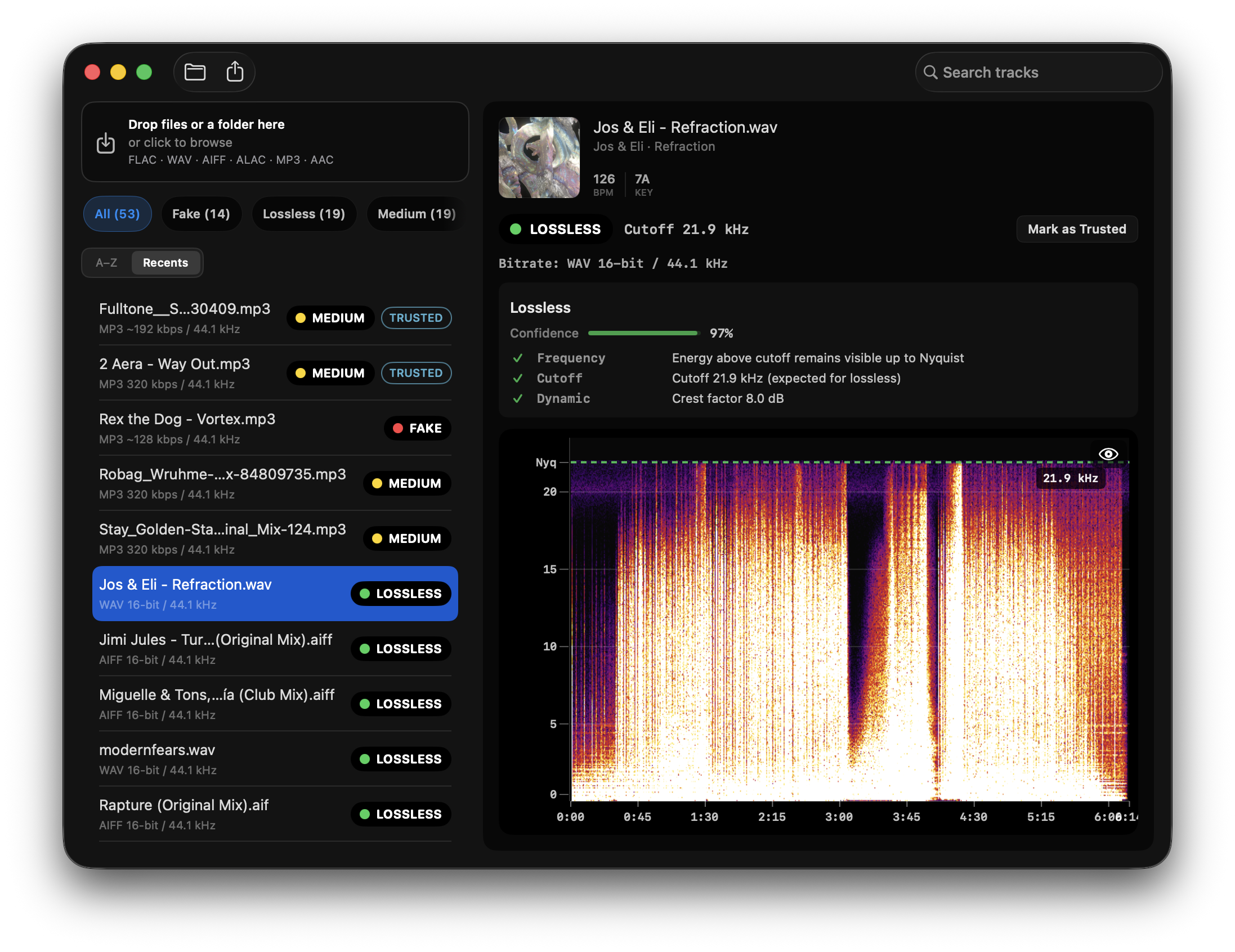
This file, Jos & Eli - Refraction.wav, shows energy across the full frequency range, reaching 21.9 kHz. There is no abrupt cutoff. Spectro's verdict: LOSSLESS, 97% confidence, cutoff at 21.9 kHz (expected for 44.1 kHz audio).
Notice how the colors extend into the upper portion of the spectrogram. That presence above 15 kHz is what gives lossless audio its air, clarity, and spatial depth on a professional system.
Fake lossless WAV (MP3 repackaged)
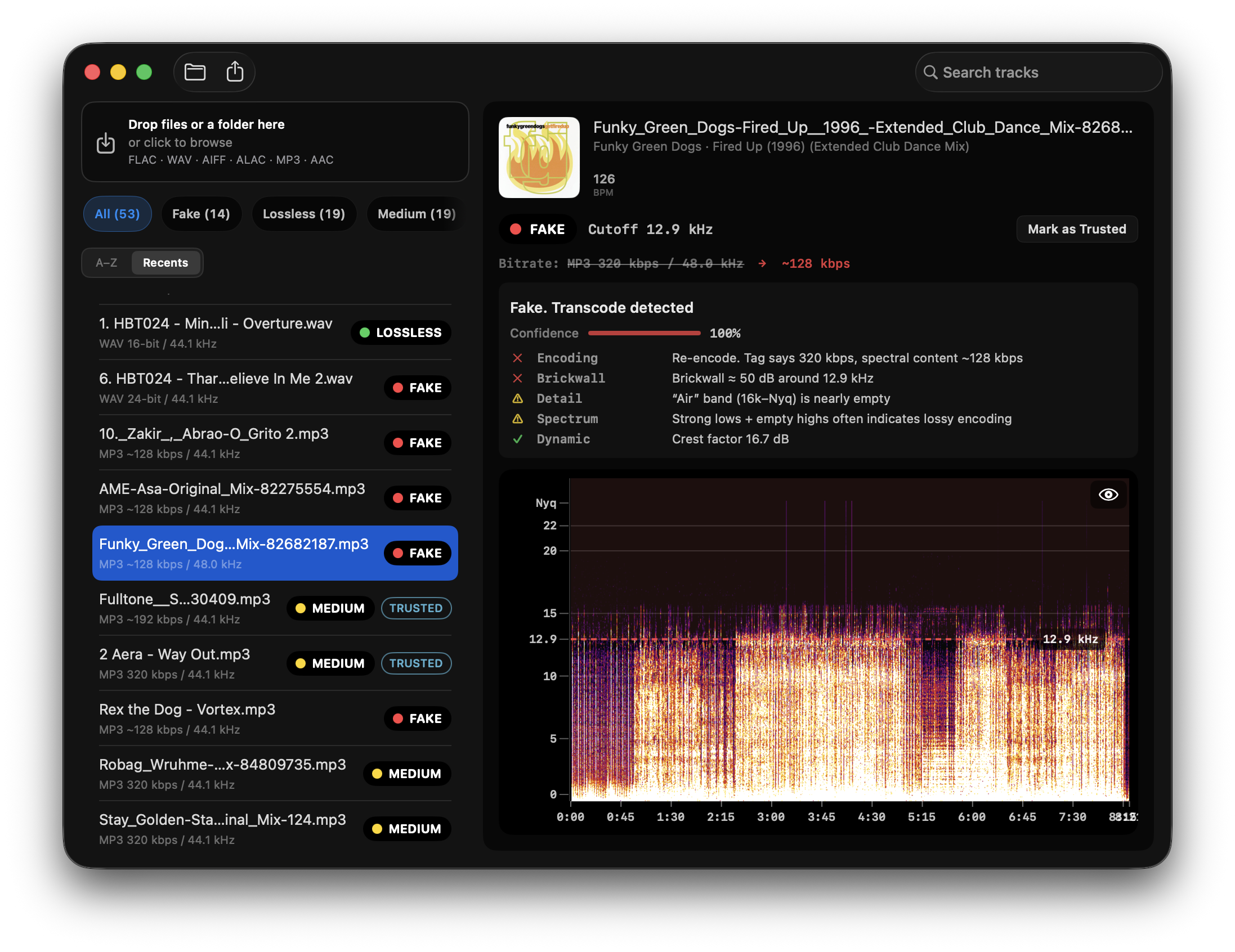
This fingerprint is the same whether the wrapper says WAV, AIFF, FLAC, or MP3. Spectro's analysis: FAKE, 100% confidence, cutoff 12.9 kHz.
- Encoding: tag says 320 kbps, spectral content ~128 kbps
- Brickwall around 12.9 kHz
- Air band (16 kHz to Nyquist) is nearly empty
A cutoff this low corresponds to a low-bitrate MP3. Wrapping it as WAV only makes the file larger. The quality does not change.
Why does fake lossless matter on a professional sound system?
On consumer headphones or a small Bluetooth speaker, the difference between a genuine WAV and a fake one is hard to hear. The frequencies that get cut, 16 kHz to 22 kHz, are subtle and often masked by everything else happening in a mix.
On a club sound system, those frequencies carry the difference between a mix that breathes and one that sounds flat. They're present in:
- Hi-hat transients, the "air" that makes a cymbal sound like a cymbal, not a hiss
- Vocal presence, the consonants and texture that make a vocal cut through
- Synth harmonics, the overtones that give a lead its edge on a large system
- Stereo width, much of the perceived width of a mix lives in high-frequency content
A set made up of fake lossless files doesn't necessarily sound terrible. It sounds slightly dull. Slightly flat. The kind of thing a trained ear notices but can't immediately diagnose.
How do you check if your WAV files are really lossless?
The manual method (Spek)
Spek is a free, open-source spectrogram viewer. For a full comparison of Spek alternatives that work on modern Macs, see Best Spek Alternatives for Mac in 2026. It's been the standard tool for this check for years. You open a file, read the spectrogram, and look for a brickwall cutoff.
The problem with this approach is that it requires you to interpret the spectrogram yourself, and it has to be done one file at a time. If you're checking a promo folder of 50 tracks before a gig, you're spending 20-30 minutes staring at spectrograms and making judgment calls on ambiguous files.
For files encoded at 320 kbps, the cutoff can be at 20 kHz, close enough to the Nyquist limit that it's genuinely difficult to call by eye alone.
The automated method
fake FLAC detector for Mac runs FFT spectral analysis on your files and gives you a direct verdict: LOSSLESS, FAKE, or MEDIUM (files with borderline characteristics). No spectrogram interpretation required.
Drop a folder of 50 tracks. In under a minute you have a list of which files are genuine lossless, which are fake, and which are uncertain, with the confidence score and the specific evidence for each verdict (cutoff frequency, brickwall strength, air band energy).
It runs entirely offline. Your files never leave your Mac, relevant if you're working with unreleased tracks, promos, or exclusives under NDA.
Why are 320 kbps fake WAV files harder to detect?
A 128 kbps MP3 converted to WAV is easy to catch, the 16 kHz brickwall is obvious even in a quick visual scan. 320 kbps is harder.
At 320 kbps, the encoder cuts off at around 20 kHz, close to the 21-22 kHz you'd expect from genuine lossless audio. On a spectrogram, the difference can be just 1-2 kHz, and the boundary is often not a clean brickwall but a gradual roll-off that looks plausibly natural.
This is where confidence scores matter. A file with a cutoff at 20.2 kHz and visible energy above it is probably genuine. A file with a cutoff at 20.2 kHz and a clear brickwall with an empty air band above it is probably a 320 kbps transcode, even if it visually looks close.
What should you do with fake WAV files in your library?
Once you've identified fake lossless files in your library, you have a few options:
Delete and re-download. If the file came from Beatport, Bandcamp, or another legitimate source, re-download it and check again. Sometimes the issue is on the distributor's end and a fresh download is genuine.
Flag and avoid. If you can't get a clean version, mark the file clearly so you don't accidentally include it in a set. Spectro can apply Finder tags directly to fake files so they're visible in your library at a glance.
Check the source. If a promo pool or distributor consistently sends fake lossless files, that's worth knowing. Your listeners can hear it even if they don't know what they're hearing.
A WAV file extension does not guarantee lossless audio. MP3s get repackaged as WAV regularly, through accidental re-encoding, workflow errors, or deliberate quality inflation.
The signature of a fake lossless file is a brickwall frequency cutoff in the spectrogram: a hard horizontal line above which there is no audio content. Genuine lossless files show energy distributed continuously up to 22 kHz. Fake ones show a wall at 16-20 kHz and silence above it.
Checking files manually with a spectrogram viewer works but doesn't scale. If you're reviewing 50 tracks before a gig, you need a verdict, not a spectrogram.
Related posts
Try Spectro free
100 tracks free. No account needed. Personal $24.99 for 1 Mac; Duo $39 for up to 2 Macs.
Download the free 100-track trial