 Spectro
Spectro Team · April 21, 2026 · 7 min read
Fabl Audio Quality Checker vs Spectro: Batch, Privacy, Price
Fabl audio quality checker is a free browser tool. Compare it with Spectro for DJ library scanning, offline batch analysis, and Mac privacy.
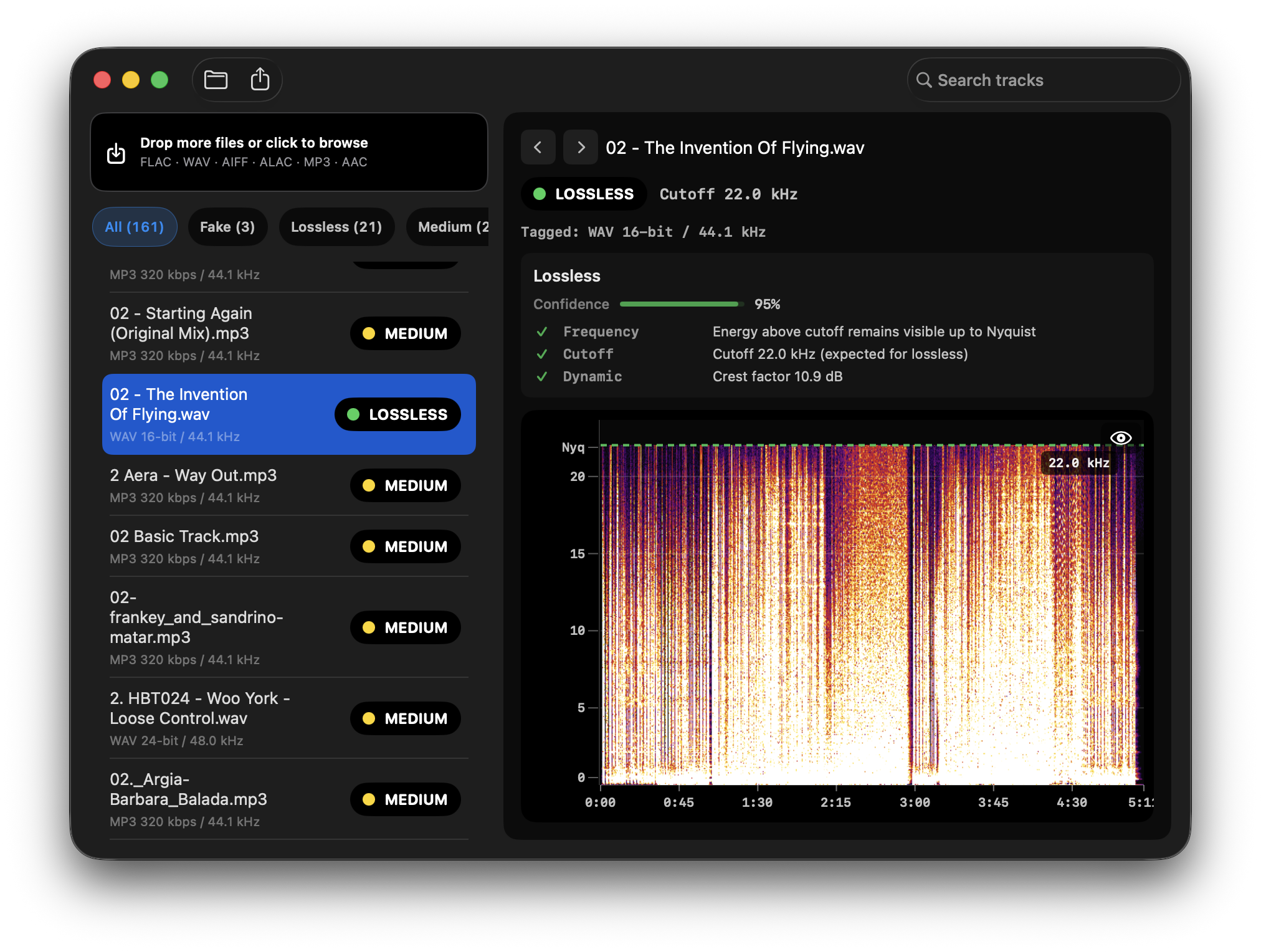
Quick Answer: Spectro is a native macOS app with Finder integration, batch scanning, and full offline processing, no files leave your machine. Fabl is web-based and suited for occasional single-file checks. For scanning a full DJ library with privacy intact, Spectro is the right tool. For a quick one-off check, either works.
If you've been researching how to detect fake lossless audio files, you've probably come across two tools: Spectro and Fabl. Both do spectral analysis and return a verdict. Both work without requiring you to read spectrograms manually. But they're built for different situations, and the differences matter depending on how many files you're checking, whether you care about privacy, and what platform you're on.
This is a direct comparison of both tools, what each does well, where each falls short, and which one fits which use case.
What is the Fabl audio quality checker?
Fabl is a free, browser-based audio quality checker. You upload a file through the web interface, and it performs FFT spectral analysis to detect frequency cutoffs. It returns a verdict indicating whether the file appears to be lossless or transcoded.
Fabl's main advantage is accessibility: no download, no installation, no payment required. If someone sends you a single file and asks whether it's genuine lossless, Fabl answers the question in about 30 seconds.
What is Spectro?
Spek alternative for Mac is a native macOS application for batch spectral analysis. You drag a folder of files, and Spectro analyzes all of them simultaneously, displaying a verdict for each, LOSSLESS, FAKE, or MEDIUM, alongside a spectrogram. Results are filterable: you can show only FAKE files and delete them directly from within the app.
Spectro v1.4 also surfaces diagnostic signals alongside the verdict: crest factor (dynamic range), clipping detection, and stereo correlation, signals that Fabl does not provide. It also detects files upsampled from 44.1 to 48 kHz, a pattern common in DJ libraries that most tools miss.
Spectro is a one-time purchase with a 100-track free trial: Personal $24.99 for 1 Mac or Duo $39 for up to 2 Macs. It runs locally on your Mac; your audio files never leave your machine.
What are the core differences between Spectro and Fabl?
Privacy
This is the most fundamental difference between the two tools.
Fabl is browser-based. To analyze a file, you upload it to Fabl's servers. The analysis happens remotely, and your audio data transits the network. Fabl's privacy policy governs what happens to that data, and it may vary.
Spectro is offline. The audio never leaves your computer. For DJs with unreleased music, upcoming sets they haven't announced, or files under NDA, local processing isn't optional, it's a requirement.
If you're checking publicly available commercial releases and privacy isn't a concern, this distinction doesn't matter. If you're working with any audio you wouldn't want uploaded to a third-party server, Spectro is the only option.
Batch processing
Fabl processes one file at a time. You upload, wait for the result, then upload the next file.
Spectro processes entire folders at once. Drop 200 files in, and you have results for all 200 within a few minutes. The interface shows all results simultaneously, sortable by verdict, so you can see at a glance how many files in a folder are FAKE and which ones they are.
For a pre-gig check on a 20-track set: Fabl takes 20 uploads and 20 waits. Spectro takes one drag and approximately 90 seconds.
For a library audit of 500 tracks: Fabl is not practical. Spectro processes the entire library and lets you filter to the problem files.
Native experience and integration
Fabl works in a browser tab. You navigate to the site, use the web interface, and get results in the browser.
Spectro is a native macOS app built for Apple Silicon, notarized and signed by Apple. It integrates with macOS conventions: drag and drop from Finder works natively, the app respects system dark mode and accessibility settings, and file operations (including deleting flagged files) happen through macOS's standard file handling.
If you work on a Mac and want the tool to feel like part of your computer rather than a web service, Spectro behaves accordingly.
Deleting fake files
Fabl tells you whether a file is fake. It doesn't do anything with that information.
Spectro lets you select FAKE files and delete them directly from the interface, or move them to Trash. For a library cleanup workflow, find fakes, remove them, replace with genuine versions, this means staying in one application rather than switching between the analysis tool and Finder.
The MEDIUM verdict
Both tools return a binary or near-binary verdict for clear cases. The distinction is in ambiguous ones.
Spectro uses a three-tier verdict system: LOSSLESS, FAKE, and MEDIUM. MEDIUM captures files where the spectral evidence doesn't cleanly indicate genuine lossless or obvious transcode, high-bitrate MP3 sources (320kbps), heavily mastered tracks with natural high-frequency rolloff, or vinyl transfers. This prevents false positives while still flagging clearly fake files.
Fabl's output is more binary. In cases where the spectral evidence is ambiguous, a binary verdict either over-flags (calling lossless tracks fake) or under-flags (missing questionable files). The MEDIUM tier exists to handle the real-world messiness that a binary system doesn't capture well.
Cost
Fabl is free.
Spectro is from $24.99 one-time. Personal for 1 Mac or Duo for up to 2 Macs. With a 100-track trial that requires no account or payment information. The trial is enough to verify a full pre-gig set.
Platform support
Fabl works on any platform with a browser, Windows, macOS, Linux, iOS, Android.
Spectro is macOS only (Apple Silicon and Intel, macOS 12+).
If you're on Windows or Linux, Spectro is not an option. For cross-platform teams or non-Mac workflows, Fabl covers the use case at no cost.
How do Spectro and Fabl compare feature by feature?
| Spectro | Fabl | |
|---|---|---|
| Platform | macOS only | Browser (any OS) |
| Privacy | Fully local | Files uploaded to server |
| Batch processing | ✓ Entire folders | ✗ One file at a time |
| Verdict tiers | LOSSLESS / FAKE / MEDIUM | Pass / Fail |
| Upsampling detection (44→48 kHz) | ✓ Automatic | ✗ Not available |
| Crest factor (dynamic range) | ✓ Per file | ✗ Not available |
| Clipping detection | ✓ Per file | ✗ Not available |
| Stereo correlation | ✓ Per file | ✗ Not available |
| Classical music false positives | ✓ Reduced (v1.4) | ✗ Not available |
| Delete fake files | ✓ Built-in | ✗ Manual |
| Native Mac app | ✓ Apple Silicon native | ✗ Web interface |
| Spectrogram view | ✓ Per file | ✓ Per file |
| Price | Personal $24.99 (1 Mac); Duo $39 (up to 2 Macs) | Free |
| Trial | 100 tracks, no account | Unlimited |
| Internet required | ✗ Fully offline | ✓ Required |
Which tool should you use, Spectro or Fabl?
Use Fabl if:
- You're on Windows or Linux
- You need to check one or two files quickly and don't want to install anything
- You're verifying publicly available commercial tracks and privacy isn't a concern
- You want a free tool for occasional use
Use Spectro if:
- You have more than a handful of files to check
- You're on macOS and want a native experience
- Privacy matters, you're working with unreleased music, DJ sets not yet announced, or any audio you wouldn't upload to a third-party server
- You want to delete fake files directly from the analysis interface
- You're doing a full library audit and need batch results sorted by verdict
For most DJs on Mac who take audio quality seriously, Spectro and Fabl are not really competing for the same workflow. Fabl is for quick spot checks when you don't have Spectro available. Spectro is for systematic library management.
To understand more about how the detection works under the hood, see our guide on how to detect fake lossless audio files.
Related posts
Try Spectro free
100 tracks free. No account needed. Personal $24.99 for 1 Mac; Duo $39 for up to 2 Macs.
Download the free 100-track trial