 Spectro
Spectro Team · April 29, 2026 · 7 min read
How to Audit Your DJ Library for Fake Lossless Audio
A complete workflow for scanning your full DJ library, identifying fake lossless files, and building a clean catalog you can trust before any gig.
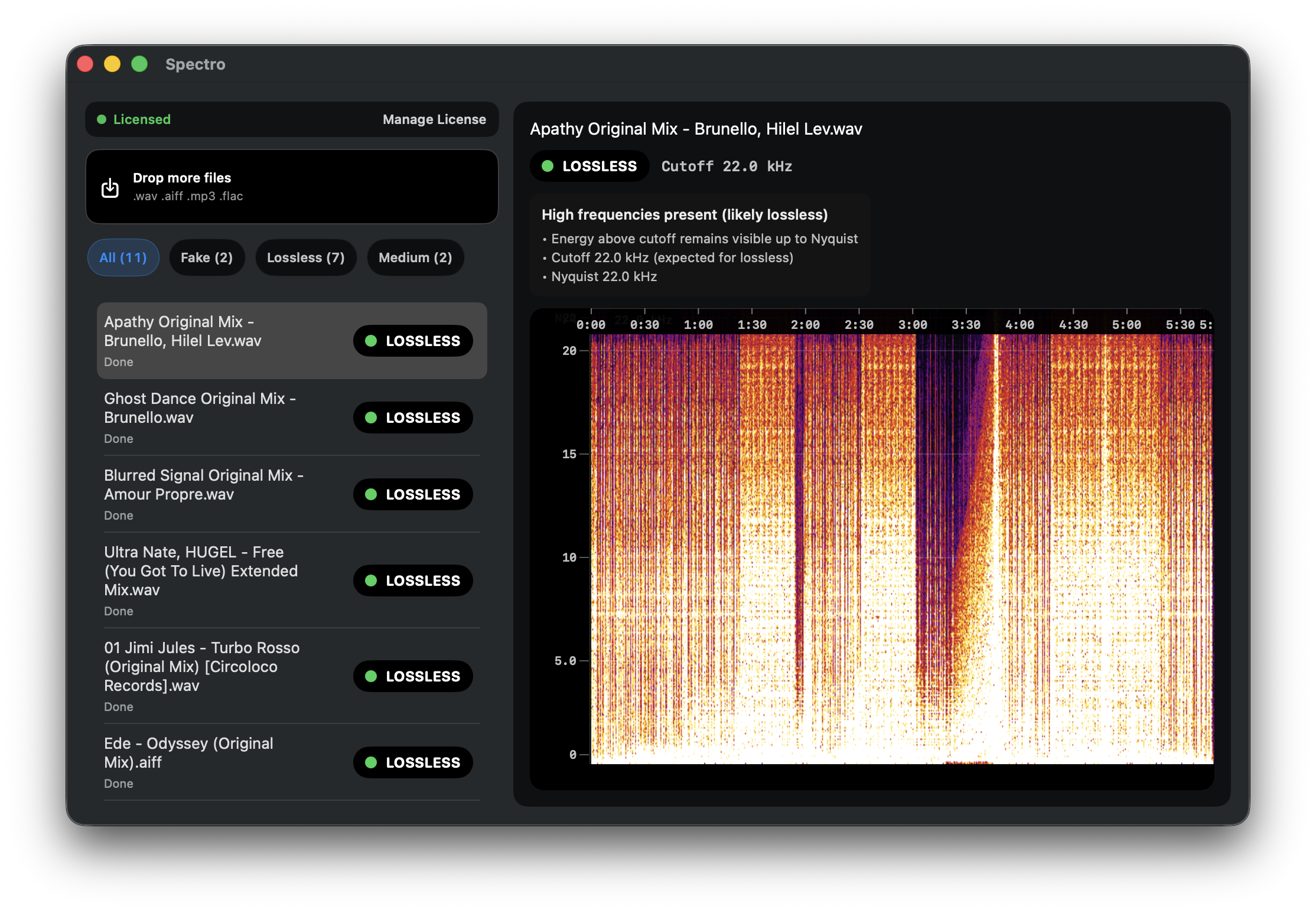
Quick Answer: Audit with a native macOS fake lossless checker first: batch scan an entire DJ folder on Mac offline and sort by the automatic LOSSLESS/FAKE/MEDIUM verdict. Spectro (a Spek alternative with automatic verdicts) maps your Rekordbox or Serato collection without reading every spectrogram. Use Spek only to spot-check MEDIUM files after the batch pass. Then replace FAKE tracks before the next pre-gig USB export.
Most DJ libraries accumulate fake lossless files quietly. You download a WAV from a record pool, it looks right, plays fine in Rekordbox or Serato, and goes into the collection. Then another. Then fifty more. By the time your library has a few thousand tracks, you have no way to know how many of them are MP3s re-packaged as WAV or AIFF.
This guide explains how to run a full library audit with automatic batch verdicts first, what to do with the results, and how to keep your Serato / Rekordbox collection clean going forward. Including a clear pre-gig CTA to download the Spectro free trial (100 tracks) before your next USB export.
What a library audit actually tells you
The goal isn't to make every file perfect. It's to know exactly what you have so you can make informed decisions.
After a full scan you'll have three categories:
- LOSSLESS, the file contains genuine full-spectrum audio. No action needed.
- FAKE, frequency content cuts off at a point consistent with prior lossy encoding, usually between 16–20 kHz. The WAV or AIFF container is real; the audio inside isn't.
- MEDIUM, high-bitrate lossy source (typically 320 kbps MP3) saved in a lossless container. Acceptable for most contexts but not technically lossless.
A single scan of your full library gives you this map. What you do with it, replace files, flag them, tolerate them, is a separate decision. The audit just makes the invisible visible.
Before you start: what Spectro needs
Spectro scans files on disk. It doesn't connect to any DJ software, modify any database, or require an account. You point it at a folder, and it reads the audio.
You need to know where your music lives. Most DJ software keeps files in their original download location. Common paths on macOS:
- ~/Music/Beatport Downloads/ or wherever your downloader deposits files
- ~/Music/iTunes/iTunes Media/Music/ if you import through Apple Music
- ~/Dropbox/DJ Music/ or similar if you sync across machines
If your library is spread across multiple folders, you can either drag them all into Spectro at once or scan them one folder at a time.
Step 1: Run the full offline batch scan
Drag your main music folder into Spectro's window. The native macOS fake lossless checker that returns an automatic LOSSLESS/FAKE/MEDIUM verdict. If you have multiple root folders (including Serato crate folders on disk), drop them all in at the same time and batch scan the entire DJ folder on Mac offline.
Spectro processes files in parallel and handles large libraries well, a 10,000-track collection typically takes a few minutes depending on format distribution and disk speed. WAV and AIFF scan faster than FLAC; MP3 is the fastest since the analysis confirms what the header already claims.
While the scan runs, Spectro shows live results. You don't need to wait for 100% completion to start reviewing, FAKE results appear as they're detected.
Step 2: Filter for FAKE results
Once the scan finishes, use the verdict filter to show only FAKE files.
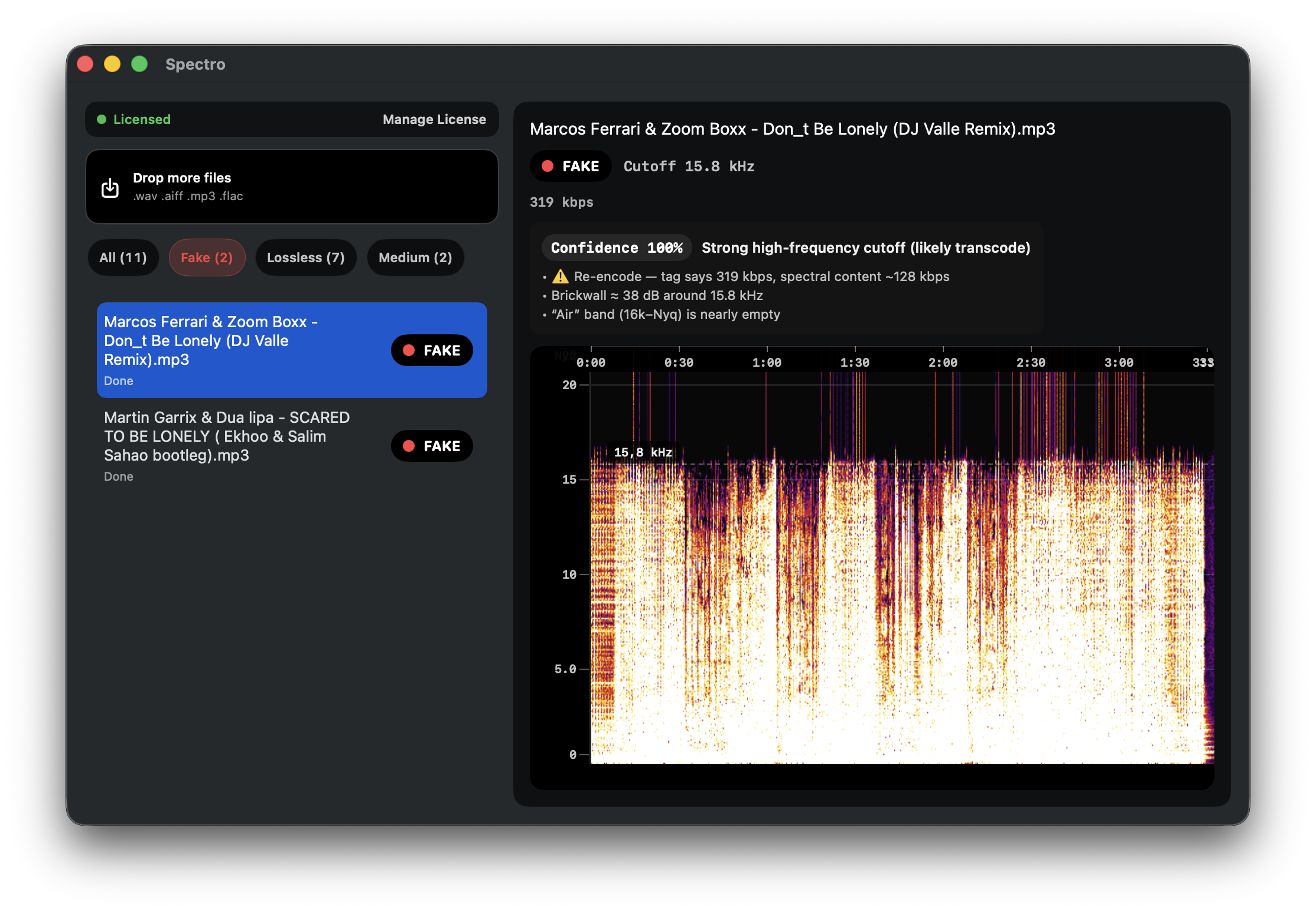
This filtered view is your action list. Export it if you want a reference outside the app, or work through it directly in Spectro.
For each FAKE file you have a few options:
Replace with a genuine lossless version. The most thorough fix. Check whether the track is available in WAV or AIFF on Beatport, Traxsource, Bandcamp, or your record pool. Beatport's FLAC and WAV files are generally reliable, though not every track on every platform guarantees lossless quality.
Re-label or quarantine it. If replacement isn't practical, discontinued tracks, white labels, exclusive edits, rename or tag the file so it's clearly marked as fake in your library. Some DJs use a Serato or Rekordbox color tag for this. The file stays usable; you just know what it is.
Replace with an honest MP3. If you can't find a lossless version, a correctly-labeled high-bitrate MP3 is better than a fake WAV. You're not improving the audio quality, but you're removing the false representation. Your library metadata is accurate.
Step 3: Handle MEDIUM results
MEDIUM results don't require the same urgency as FAKE. A MEDIUM verdict means the file is lossy but high-bitrate, typically 256 or 320 kbps MP3 content in a lossless container. The audio quality difference from genuine lossless is real but usually not audible in a club context at performance volumes.
A practical approach: prioritize replacing MEDIUM tracks that you play on high-resolution systems (high-end club rigs, listening sessions, recorded mixes where you'll listen back closely). For everything else, flag them and move on.
Don't let a large MEDIUM list stall the audit. Deal with FAKE first, those are the files that are actively misrepresenting their quality.
Step 4: Decide your replacement pace
Most people's FAKE lists will number in the dozens to low hundreds. You don't need to replace them all before your next gig.
A practical approach for large libraries:
- Sort FAKE results by artist or label to batch-purchase replacements efficiently
- Prioritize tracks you play regularly over deep catalog
- Work through the list over several weeks as you naturally buy new music
- Run a follow-up scan after each batch of replacements to track progress
The one-time audit gives you the full picture. The cleanup happens at whatever pace suits your buying budget and schedule.
Step 5: Keep the library clean going forward
The recurring cost of maintaining a clean library is low: scan new music before importing it into your DJ software.
A folder of 10–20 new tracks takes under a minute to scan. If anything comes back FAKE, you know before you've set cue points, added tags, or built the track into a playlist. Catching it at the download stage is far less disruptive than discovering it later.
For a gig-specific version of this workflow, focused on what to check immediately before a set, see How to Check Audio Quality Before a Gig.
Common questions about library audits
How do I know if a false positive is really fake? Spectro shows a confidence score alongside each verdict. A FAKE with a high confidence score and a clear frequency cutoff in the spectrogram is almost certainly fake. A FAKE with moderate confidence on a track you know was mastered from original session files is worth investigating further, certain mastering styles and very old recordings can produce borderline results. For detailed guidance on edge cases, see Why Your Lossless File Is Being Flagged as Fake.
Does format matter? WAV vs AIFF vs FLAC? No. Spectro analyzes the audio content inside the container, not the container itself. A fake lossless file shows the same spectral signature regardless of whether it's packaged as WAV, AIFF, or FLAC. The verdict is based on frequency distribution, not file extension.
Should I scan MP3 files too? Scanning MP3s confirms they're what they claim to be, lossy files labeled as lossy. This can be useful if you want a complete picture of your library, but it's lower priority than auditing your WAV, AIFF, and FLAC collection. Spectro supports MP3 and will analyze them if included in the scan.
Will this affect my DJ software library? Spectro reads audio files without modifying them or touching any DJ software database. Rekordbox, Serato, and Traktor are unaffected by a Spectro scan.
Ready for the next gig? Download Spectro free (100 tracks) and run a pre-gig Serato / Rekordbox folder scan before USB export. Or follow the Serato audio checker and fake lossless checker for Mac workflows.
Related posts
Try Spectro free
100 tracks free. No account needed. Personal $24.99 for 1 Mac; Duo $39 for up to 2 Macs.
Download the free 100-track trial